
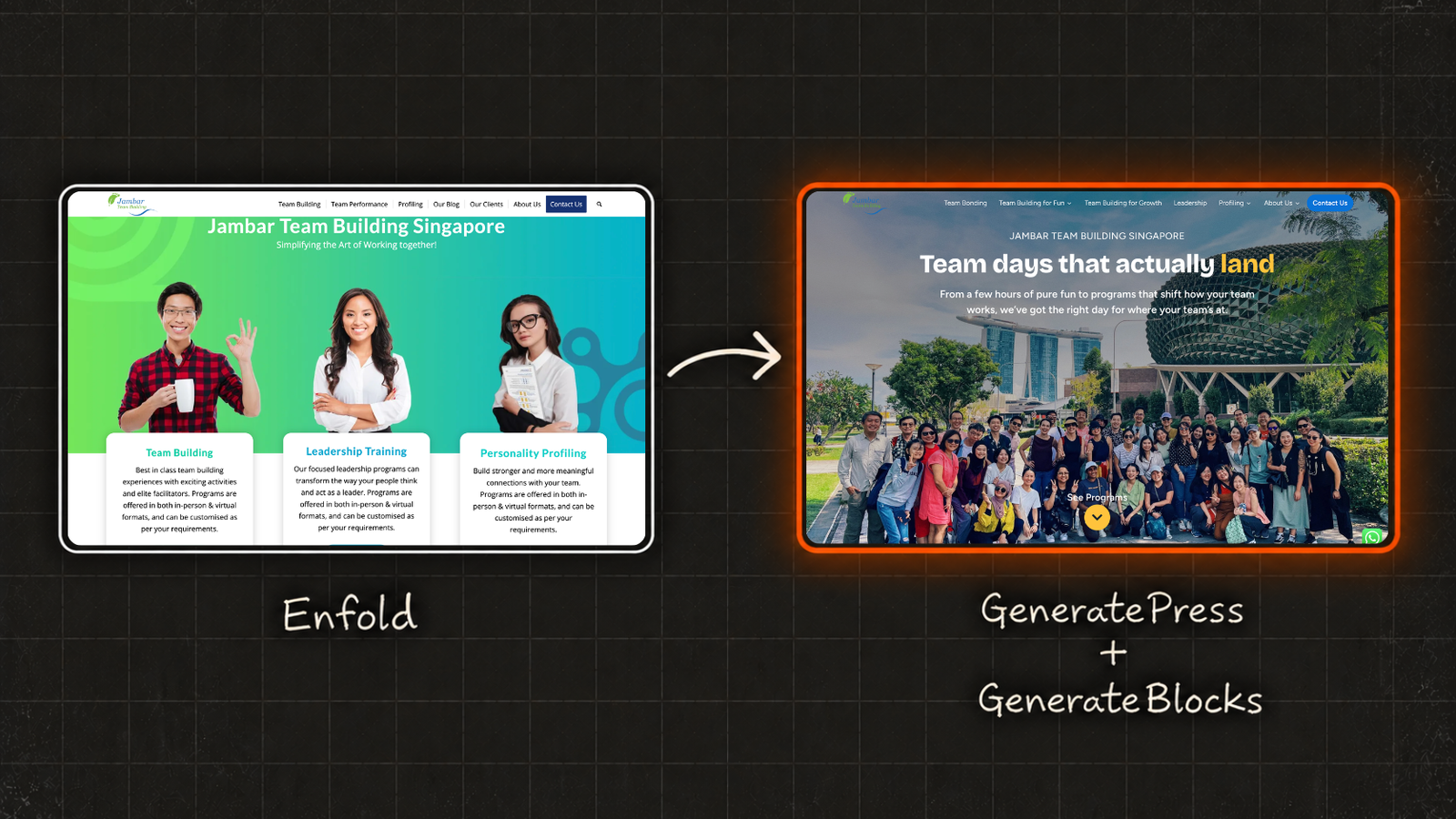
I took on this project three months ago and completed it in around 40 days. These are my observations and learnings from the project.
I work at Jambar Team Building, a corporate events company based in Singapore, as Digital Marketing Manager. I maintain the company’s website among other things. The website was built on WordPress with the Enfold theme. As far as I know, the website had been running on Enfold for more than a decade.
Why leave Enfold?
Enfold was a great theme to work with for a long time. It was easy to use, kept things structured, and that meant fewer decisions to make overall. But in recent years, it started to show its limits, especially in the kinds of page layouts and sections I could build.
I first noticed this when I tried Elementor a couple of years ago. I could see what layouts were possible with a flexible page builder, and Enfold felt rigid by comparison. Almost anything could be built with code, but the whole point of using a theme or page builder is to reduce that dependency on code and make building and maintenance simpler.
Over the years, Enfold made it harder to build layouts and pages without writing some CSS to style them properly.
The bugs added up too:
- I couldn’t type spaces with the spacebar for a long time. I had to copy a space and paste it between words.
- The Advanced Layout Builder (ALB), Enfold’s native drag-and-drop page builder, felt limited to work with.
- Some blocks wouldn’t scroll with the page and looked pinned in place.
Another major problem came with the release of WordPress 7.0.
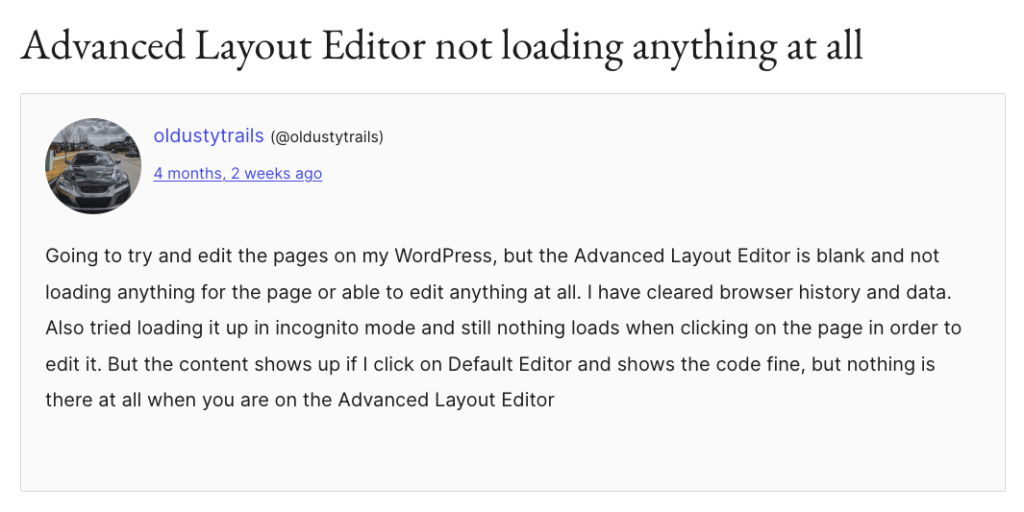
After updating WordPress, I found that pages built with Enfold’s Advanced Layout Builder could no longer be edited normally. The pages wouldn’t open in the Advanced Layout Builder. Instead, when I clicked Edit on a page in WordPress, I was presented with the underlying Enfold shortcode markup rather than the visual ALB interface I had been using to edit the page.
This was a particularly serious problem because so many pages on the site had been built with ALB and I couldn’t edit or add pages when I needed to. Enfold later acknowledged a WordPress 7.0.0 compatibility issue involving a missing ALB metabox in the Block Editor and fixed it in Enfold 7.1.6.
Maintaining a small site with Enfold, maybe under 30 pages, is fine. For a 200-page site, it isn’t. As the limitations and bugs piled up, I decided it was time to move on.
I started looking for better themes to work with than Enfold. I considered options such as a small theme combined with Elementor, Divi, Astra, OceanWP, and others. But I finally landed on GeneratePress + GenerateBlocks.
Why GeneratePress + GenerateBlocks?
From my experience of trying different themes and page builders to build websites, GeneratePress + GenerateBlocks was a simpler, leaner and faster setup.
Elementor is a good page builder, but I find it slow to work with when building quickly, and it feels clunky and heavy.
GenerateBlocks adds a small set of flexible blocks to the WordPress Block Editor. They work within the native WordPress block editing experience without making the site feel heavy or slow. Those blocks let me build layouts that would have required custom code on Enfold, including CSS Grid and Flexbox layouts and custom query loops.
It felt intuitive and just right for what I needed. GeneratePress itself is lightweight and fast. I’m using the Pro versions of both, and I have nothing to complain about.
The Elements feature in GeneratePress also saves me time and reduces the need for additional plugins. GeneratePress Elements lets you create content and layouts in one place and control where they appear using display rules.
For example:
- I was able to build reusable layouts once and use them across the site.
- I could add Google Analytics or Google Tag Manager scripts without installing another plugin.
- Custom CSS and JavaScript could be handled through Elements and targeted to specific pages using display rules, again without needing another plugin.
Because GenerateBlocks works within the WordPress Block Editor, I can also use WordPress patterns with the layouts I build. A layout built on a page, even an entire page, can be saved as a pattern and reused elsewhere.
A simple example is a contact section that appears on several pages, in different positions. A pattern can be saved as a synced pattern, so changing the synced pattern updates it everywhere it is used. It can also be detached so that a particular copy can be changed without affecting the other instances.
They’re also easy to manage from the WordPress admin panel. Enfold has a similar feature called Templates, and it has improved recently, but from my experience, it isn’t as simple to use.
What I was working with!
Before making any changes, I did an audit of the entire site to strategise a plan.
The old site had a lot of unused pages, drafts, and other content that had accumulated over more than a decade of use. I didn’t want to transfer all of that to the new site. I wanted to keep things cleaner, simpler and faster.
The old site had:
- 91 published blog posts
- 114 published pages
- 44 published service pages
A total of 249 published pages.
On the new site, after making certain decisions with my manager, we ended up with:
- 88 published blog posts
- 40 published pages
- 50 published service pages
We removed a lot of old and unused pages, including service pages for services we no longer offer.
Instead of rebuilding everything at once, I built some things separately to keep the process manageable.
On the old site, service pages were a Custom Post Type. I kept that approach but made it clearer by creating two Custom Post Types, one for each primary category of service we offer. I also added custom field groups to both, so things like adding FAQs are simpler.
I built the landing pages used for Google Ads and other campaigns as a separate site in a subdirectory. To a visitor, it doesn’t look like a different site. Behind the scenes, it gives me much more control:
- Landing pages are built for specific campaigns and shouldn’t be indexed. With a separate site, I can control indexing for the entire site rather than configuring every landing page individually.
- It stays small, fast and simple.
- I can test different landing pages without cluttering the main site.
- Multiple, small, tidy sites are easier to maintain than one site with a lot of pages.
Rebuilding phase
What I used AI for & What I didn’t use it for?
A question you might have is: why not build the entire site with AI? Why not just generate all the pages of the site with AI and be done with it?
I used AI to build some small parts of the site, such as an activity filter feature. I also built the feature in a way that makes it relatively easy to maintain when changes need to be made.
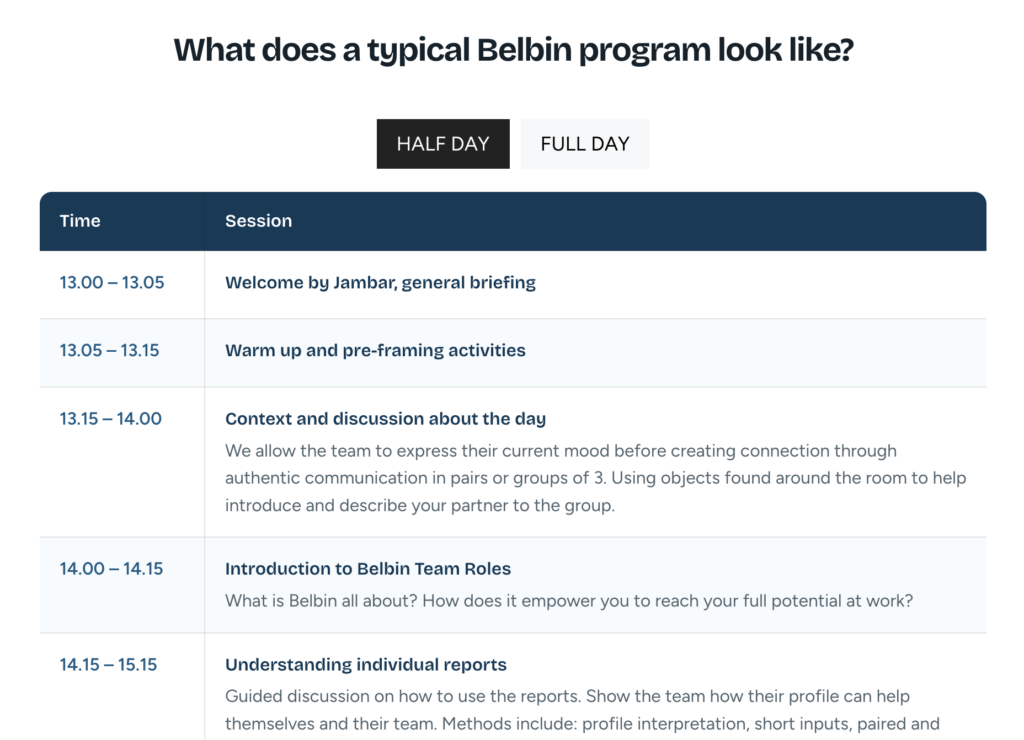
Another thing I used AI for was creating HTML tables that detail some of our program schedules. Instead of creating those tables manually and adding all the schedule details, which is a time-consuming task, I used AI to create them and add the HTML code snippet to the relevant section.
AI was mostly used for generating page mockups, and I used those mockups as references when rebuilding the pages.
This is a 200+ page site, and using AI to rebuild the whole site by generating pages is not ideal for this project. I can generate all those pages with AI, but imagine making changes to a couple of pages later on. I would need to ask AI to make those changes and then update the pages on the site again.
Small changes, such as updating the font size or changing the text content on a page, can take longer to execute with AI than making them manually on a page built with a page builder and a good theme.
AI is great for small websites under 10 pages, but for a site of this size, a proper platform is needed.
Also read: When to use AI to build websites, and when not to?
How I worked on the project?
I mostly worked on the site myself. My manager gave feedback where needed, and I made changes as I built. It was an iterative process. The homepage went through about 10 versions before we landed on the final one.
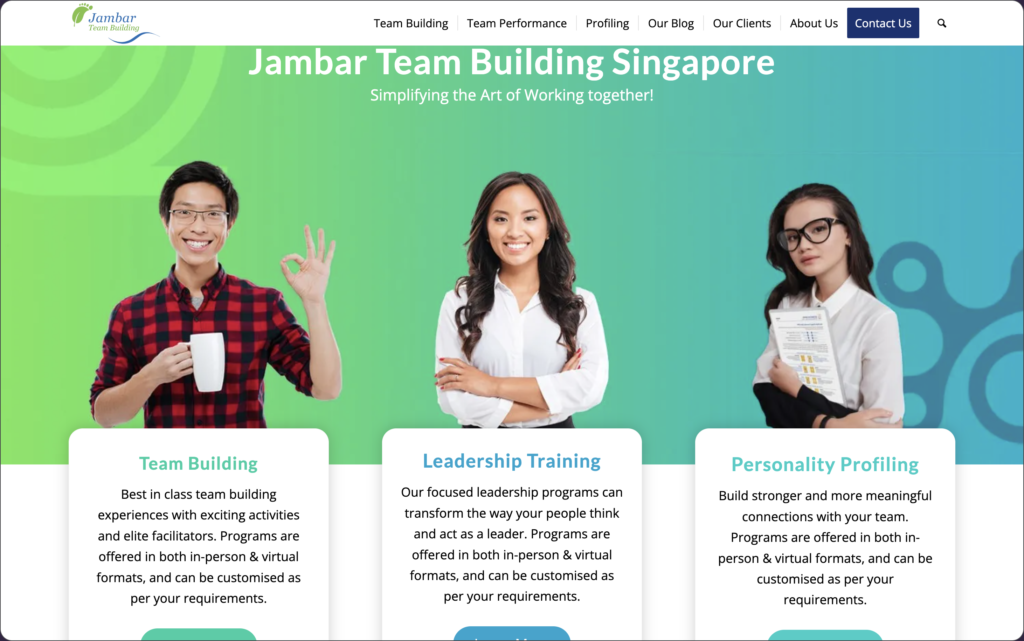
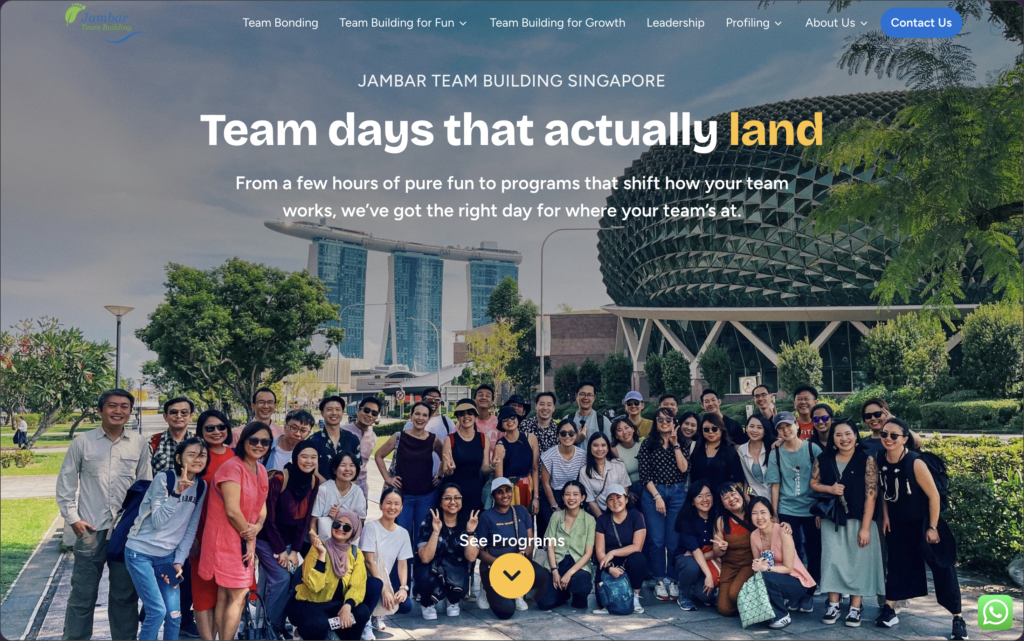
A look at the hero section of the home page before (on the left) and after the rebuild (on the right).
A look at the hero section of the home page before (on the top) and after the rebuild (on the bottom).
All the pages came out well. Whatever layouts I wanted to build with Enfold but couldn’t, I was able to build with GenerateBlocks.
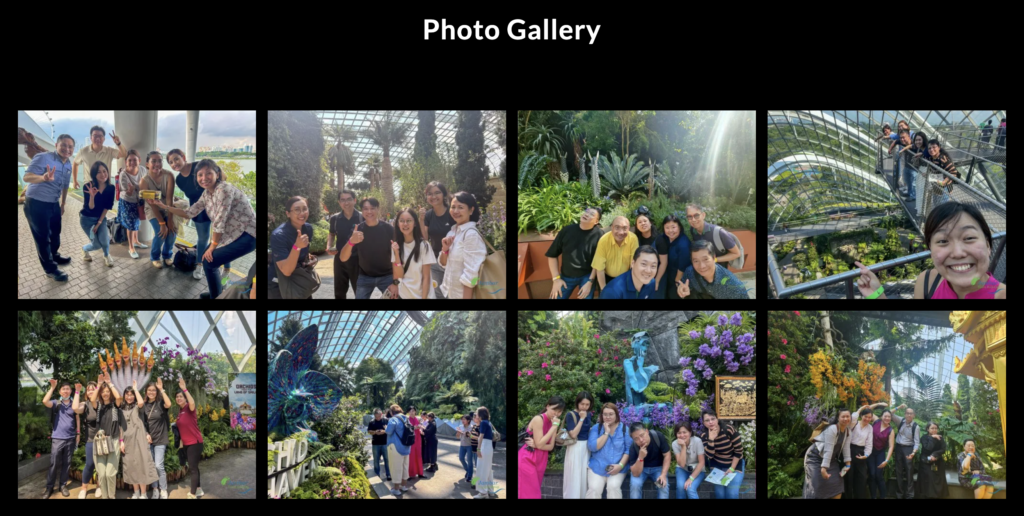
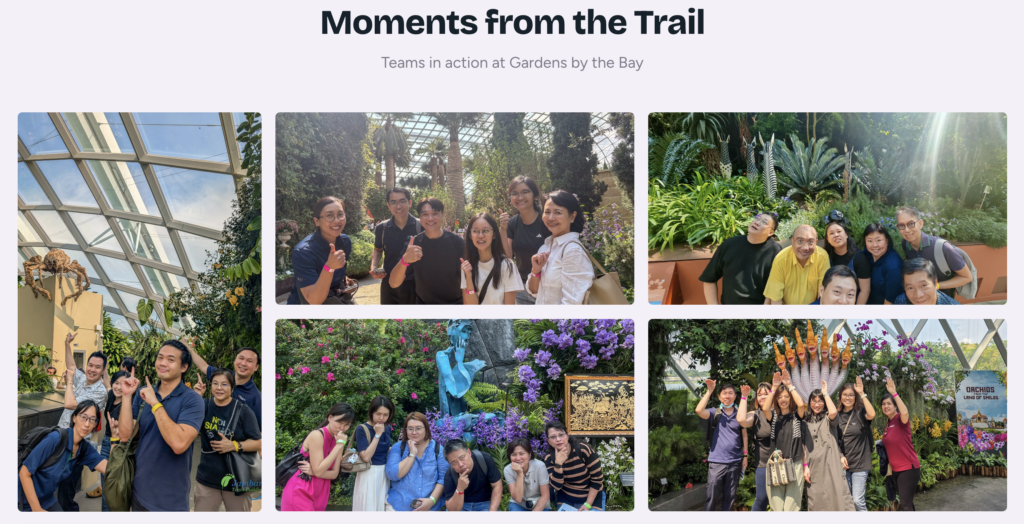
A look at the photo gallery section of an activity page, before (on the left) and after the rebuild (on the right).
A look at the photo gallery section of an activity page, before (on the top) and after the rebuild (on the bottom).
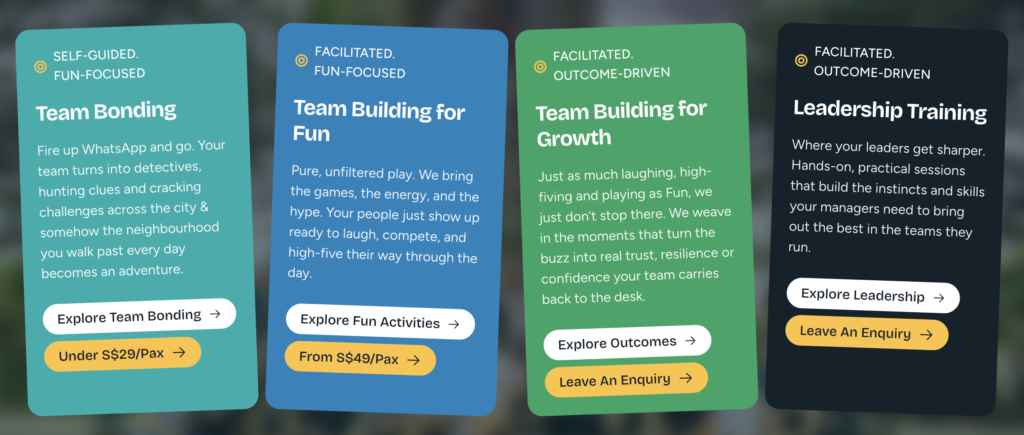
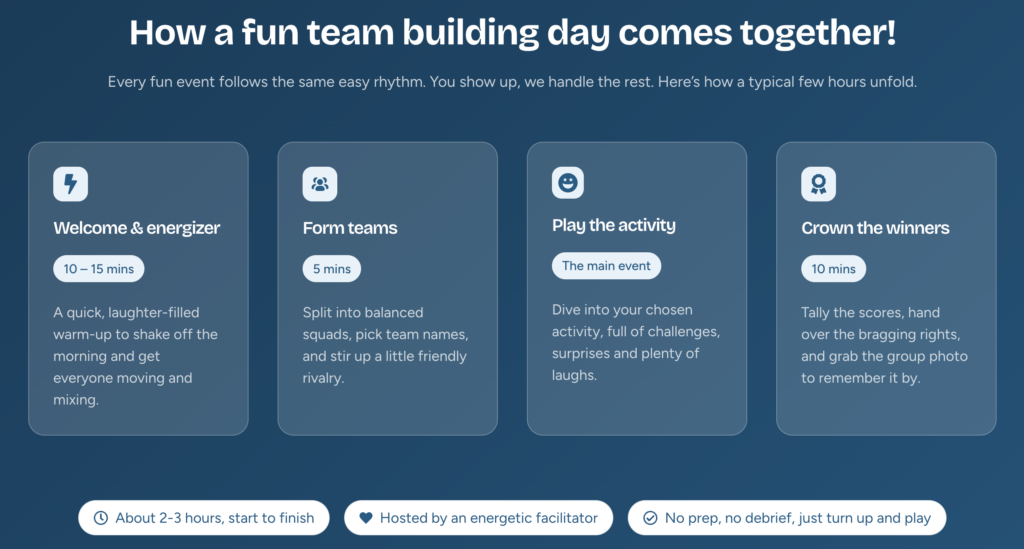
Sections like contact forms and testimonials were easy to manage with the Elements feature. I built them once in Elements and set them to appear on specific pages at specific positions.
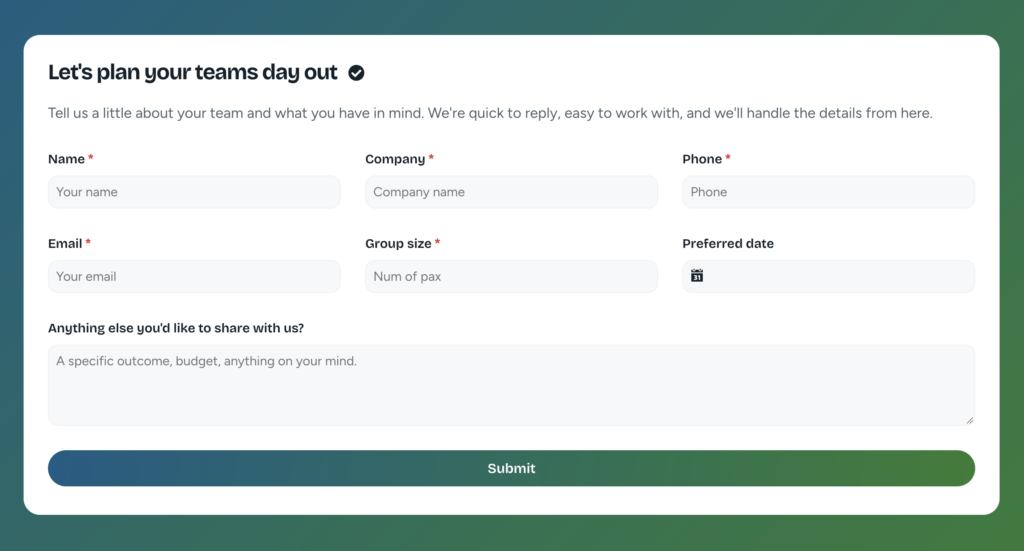
I also reconfigured SEO for the entire site after the rebuild was complete.
I rebuilt all the service pages and business pages. For the blog posts, I imported them from the previous site to the new site using WordPress’s import/export functionality.
The hard parts
Importing blog posts
One of the hardest things was cleaning up all the Enfold ALB shortcodes that came along with the imported blog posts.
Almost all the blog posts on the old site were built with ALB blocks. ALB blocks are specific to Enfold, so the imported blog posts contained this block markup, with the text content nested between the code.
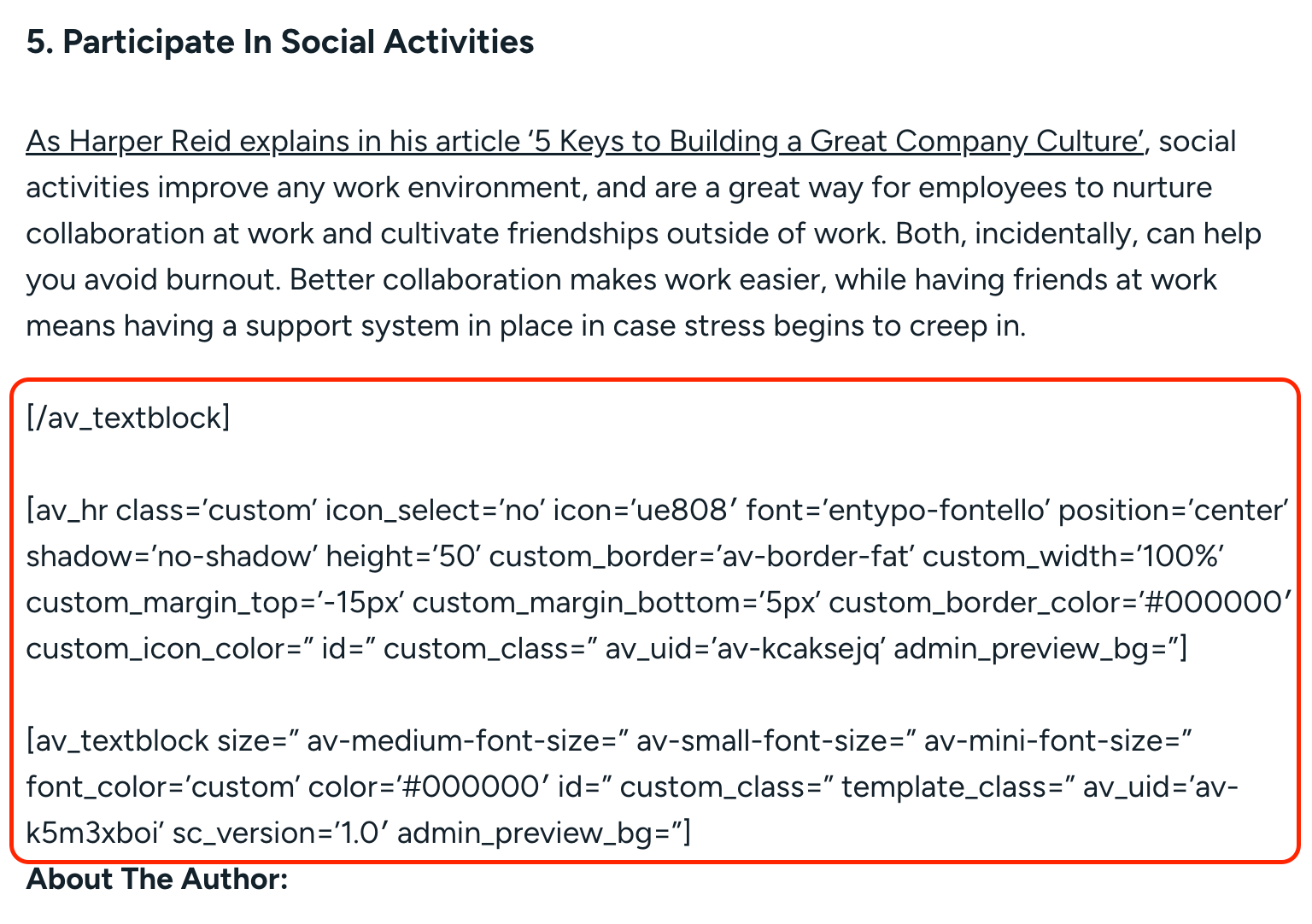
Cleaning up that code was one of the tedious parts of the process because it wasn’t simply a matter of removing pieces of code from the top and bottom of the text. There was also code embedded within the text content that needed to be removed.
This was something I knew about before importing the blog posts, and I still felt that the process was faster than adding all those blog posts manually.
Page URL slugs
Another thing I had to be careful about was the page URLs.
URLs had to match the old site. If URLs changed without appropriate redirects, the site could lose search visibility and traffic associated with those URLs. Because the site had built up organic visibility over more than a decade, preserving the existing URL structure was important.
My approach was:
- I was careful while creating pages and made it a part of the process to check and compare page slugs to the old site’s pages during the build.
- Once the site was done, I put a copy of the old site on a temporary domain and had Claude compare the sitemaps of both, so I could quickly find and fix any mismatches.
- After launch, I kept checking for 404s in the Rank Math plugin and added redirects where needed.
Results & Learnings
It took around 40 days to get everything together.
The biggest improvement was the speed of work: building pages, adding and updating content, and the overall efficiency of the WordPress admin experience.
I can now easily build customised layouts with personalisation, which was much harder on the old site.
Page speed scores held steady on some pages and improved on others. The site also feels lighter overall.
The separate landing page site also made it simpler to handle landing pages. New landing pages can be built faster now. Whatever scripts are needed for Google Tag Manager or Google Ads sit on the landing page site without cluttering the main site.
Suggestions to others who might be doing a similar project
Cleaning up ALB code is a nightmare, so don’t import everything straight away. Be strategic.
Import posts with simpler layouts where cleanup is easier. For posts with complex layouts, it’s better to recreate the layout and copy the content over than to import everything and clean up the shortcodes afterwards.
If I were to do this whole thing again, I’d do it sooner.
I’d wanted to switch themes ever since I first noticed the issues, but I hesitated because of how complex the project seemed. The effort would have been roughly the same either way, and I’d have been able to build and maintain things better if I’d made the move earlier.
When you are choosing a theme or plugin, choose one that has good support and reviews, and try it a couple of times before deciding on it.
I chose GeneratePress + GenerateBlocks after building multiple sites with them for my personal projects. They were great to work with, and they have good community support.
This is one of the projects I feel glad that I initiated and completed. It took a lot of effort and time, but all of it was worth it in the end.